

Troubleshoot and contact support
Check common causes first, then send support the details needed to investigate.
Start with these checks
If a document will not open, check your account and team. If saving stalls, check the save status and connection. For export failures, read the export message. An empty list may also mean its contents could not load.
Do not immediately refresh or clear browser data when work is unsaved. Check whether you can save it first.
Send a private inquiry
- Open the inquiry form in the Help center.
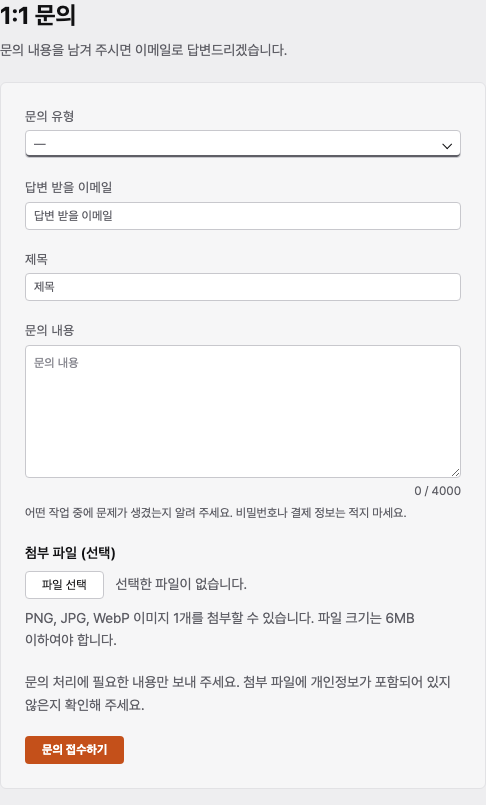
- Choose a topic and enter the email address where you want a reply.
- Describe what you were doing and what went wrong, in order. Include the document URL and the time of the issue.
- If useful, attach one PNG, JPG, or WebP screenshot, up to 6 MB.
- Keep the inquiry number shown after submission.
An example report
At around 2 pm today, I cropped a photo on page 3 and chose Done. The change appeared on screen, but reopening the document showed the previous photo. I used Chrome. The attached screenshot marks the document URL and affected area.
Look for the reply
Check the email address you entered, including its spam folder. Include the existing inquiry number when following up. You can also email contact@numenore.biz directly.
Do not send passwords, API keys, or a full card number. Hide other people’s personal information before attaching a screenshot.
Still need help?
Check common questions or contact support.