

Download as PNG, JPG, or PDF
Choose the right format and pages for your finished design.
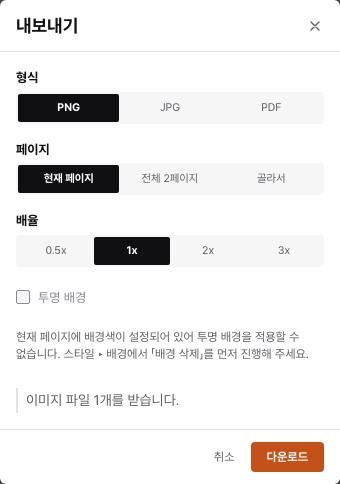
Choose a file format
Use PNG for image output, JPG for common photo-based images, and PDF to deliver several pages in one file. For a transparent background, choose PNG and check the available option. JPG does not support transparency.
Download the file
- Check the save status, then open Export.
- Choose PNG, JPG, or PDF.
- Choose the current page, all pages, or a selected set.
- Check the available size, scale, and background options. For PDF, choose the screen or print settings suited to your use.
- Open the downloaded file and check its page count, line breaks, photos, and margins.
If an option or download is unavailable
Available scales and output limits depend on the document and account. Use the range shown on screen or export fewer pages at a time. If an element needs a rights check, replace it or resolve its usage eligibility.
Prepare for printing
Check the finished size, bleed, and safe margin before creating a print file. Keep important text and logos well inside the trim line. Also confirm the file requirements of your print provider.
Still need help?
Check common questions or contact support.