

Edit text and control line breaks
Change your wording, then adjust size, alignment, and wrapping to fit the text box.
Enter your text
- Add a heading, subheading, or body text from Text.
- Double-click the text on the canvas and type your words.
- Click outside the text to finish typing.
- In Properties, choose a font, size, and text color.
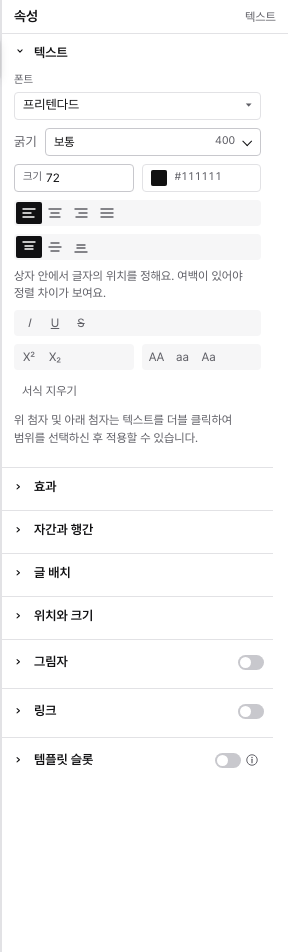
Fit text into its box
Narrowing a text box changes line wrapping. Choose how long text should behave in its layout settings. Shrink reduces the text to fit. Grow box expands the box for the text. Fill to fit can enlarge or reduce the text to fill the box.
Refine alignment and spacing
Text alignment positions lines inside their box. Letter spacing adjusts the space between letters, line spacing the space between lines, and paragraph spacing the space between paragraphs. Vertical alignment is visible when spare space remains in the box.
If a heading breaks in the middle of a word, try word-based line breaks. If it still does not fit, widen the box or shorten the wording.
Still need help?
Check common questions or contact support.