

Add, duplicate, and reorder pages
Manage a multi-page post, notice, or presentation in one document.
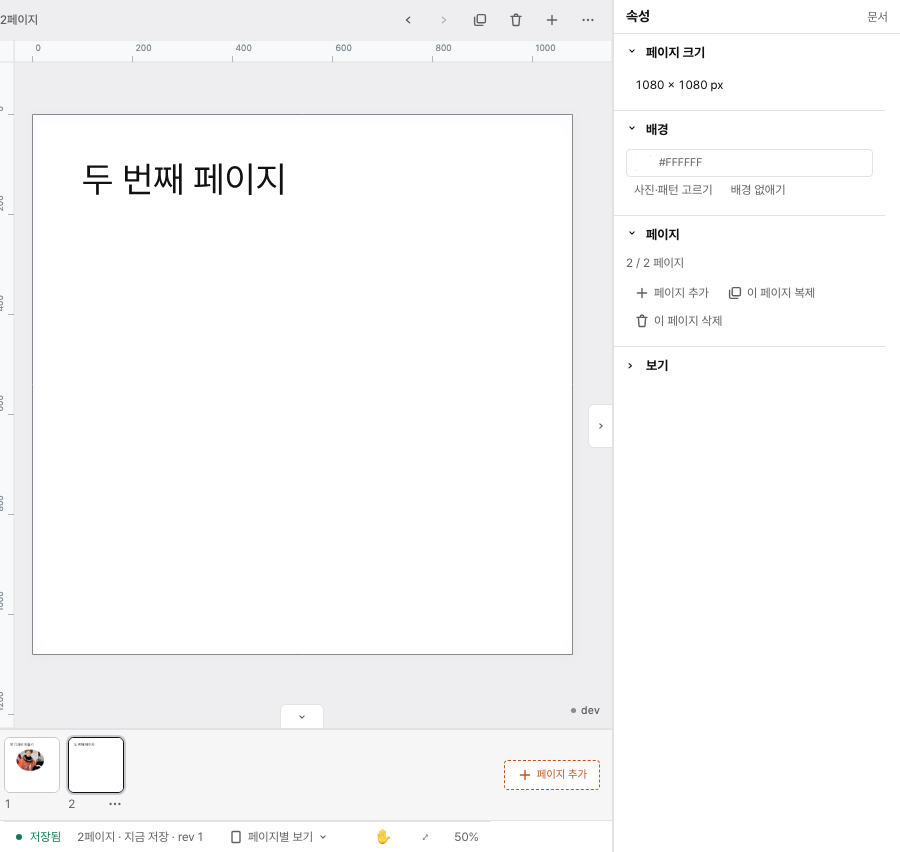
Choose the page to work on
Select a thumbnail in the page list to move to that page. Collapsing the list or changing the viewing mode changes your workspace, not the page contents.
Use page actions
- Select the page you want to work on.
- Use page actions to add a page or duplicate the current page.
- Use the previous-page or next-page move action to change its position.
- Check the updated order in the page list and on the canvas.
Delete a page
Choose the delete-page action and confirm that you selected the right page. Its text and photos are deleted with it. Use Undo if you made a mistake.
You cannot delete the only remaining page. Add another page first.
Choose a comfortable page view
Continuous view helps you work across pages. Single-page view keeps the focus on one page. Drag the page list boundary to adjust its height, or collapse the list when you need more canvas space.
Still need help?
Check common questions or contact support.