
Find your way around the editor
Learn where to add elements, change their properties, and manage pages.
Select and edit on the canvas
The canvas holds your design. Click an element to select it, or double-click text to edit its words. Double-clicking a photo opens the cropping or composition controls available for that photo.
Find elements and properties
Use Templates, Text, Media, and the other panels to add content. Properties contains settings for the selected element. Layers shows the stacking order.
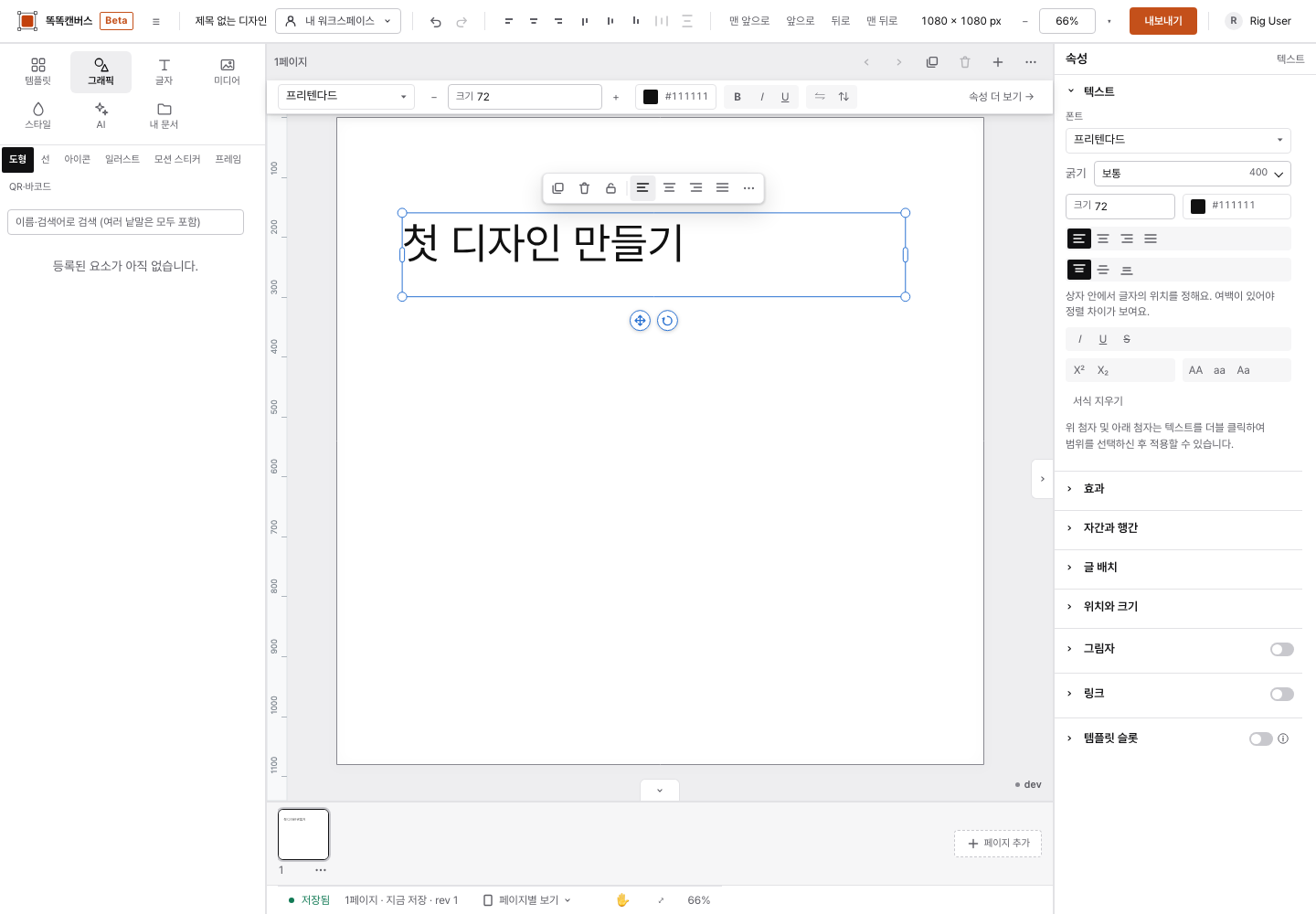
On a narrow screen, open the properties panel to see settings for the selected element.
Adjust your workspace
- Change the zoom level to inspect details.
- Choose Zoom to fit to see the whole page again.
- Select the page you want in the page list. Collapsing the list does not delete any pages.
- Use Undo to reverse an unwanted change.
When an element is hard to select
Choose overlapping elements from Layers. Unlock an element before moving it. If you are typing, click outside the text first to leave text editing.
Still need help?
Check common questions or contact support.