
Crop photos and adjust frames
Choose which part of a photo to keep, or adjust its position inside a fixed frame.
Cropping and composition are different
Cropping chooses the area of the photo to use. Composition controls move or enlarge the photo inside a frame already placed in the design. You do not need to move the frame itself.
Choose the area to keep
- Select the photo and open Crop.
- Drag the corners to adjust the area to keep.
- Turn on Keep aspect ratio to preserve the original proportions.
- Choose Done to apply the crop, or Cancel to return to the previous state.
Position a photo inside its frame
Double-click the photo and check the mode that opens. In composition mode, move the photo so that a face or product stays visible. Cover, Contain, and Fill use different fitting methods.
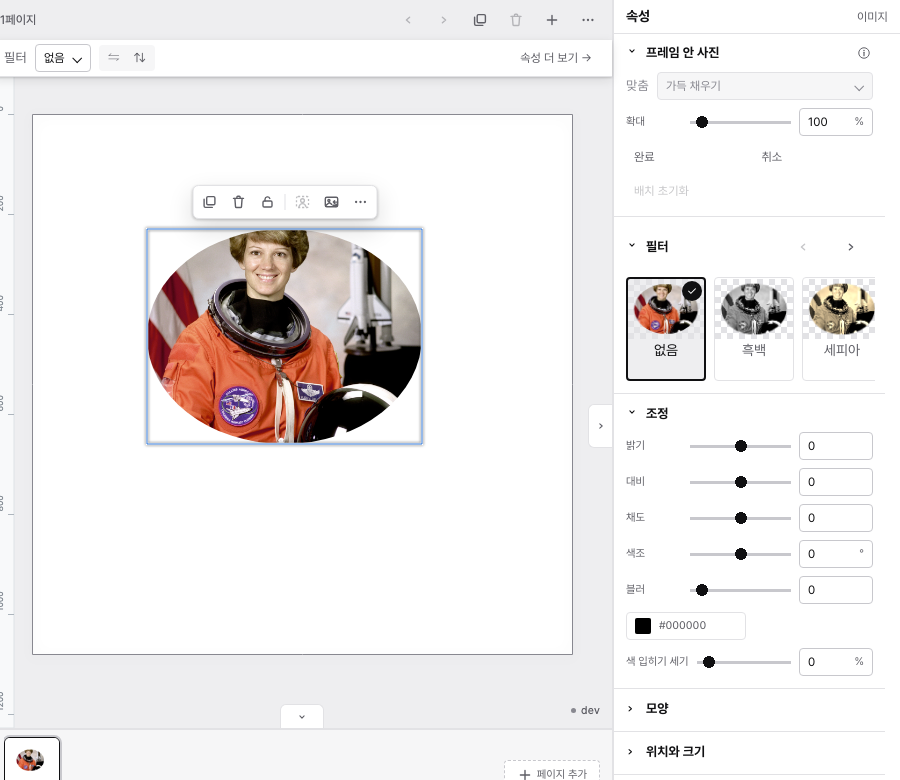
Contain shows the whole photo and may leave empty space. Fill can change its proportions. Use Cover to fill the frame while keeping the photo’s proportions.
Check before finishing
Check the composition and choose Done. Esc cancels the current adjustment. After applying a change, you can reverse it with Undo.
Still need help?
Check common questions or contact support.