

Generate an image with AI
Describe a scene, choose an available model, and check the cost before generating.
Describe the scene you need
Specify the subject, background, composition, and mood. Include how the image will fit your layout, such as an iced latte by a window, afternoon light, and empty space on the right for text.
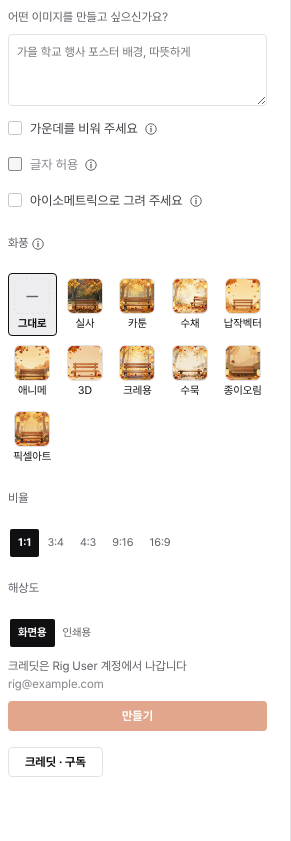
Choose a model and generate
- Open the AI panel.
- Choose an available model and image generation.
- Enter your description and the available size or other options.
- Check the credit cost and the wallet that will be charged, then generate.
- Review the result and place it in your design.
If you want words in the image
Models that support text allow you to choose that option. Read all generated words carefully. For exact dates, prices, and contact details, separate text elements in the editor are easier to verify and change.
While a job is processing
Check its status before starting another request. Repeated requests can create separate jobs. If a job fails, read the message and check your credit history before trying again.
Still need help?
Check common questions or contact support.